The Monumize workflow
Seven steps, one sitting.
From a phone photo of the stone to a file your cutter opens. Watch the whole job on a demo stone in 1:18, then read each step below.
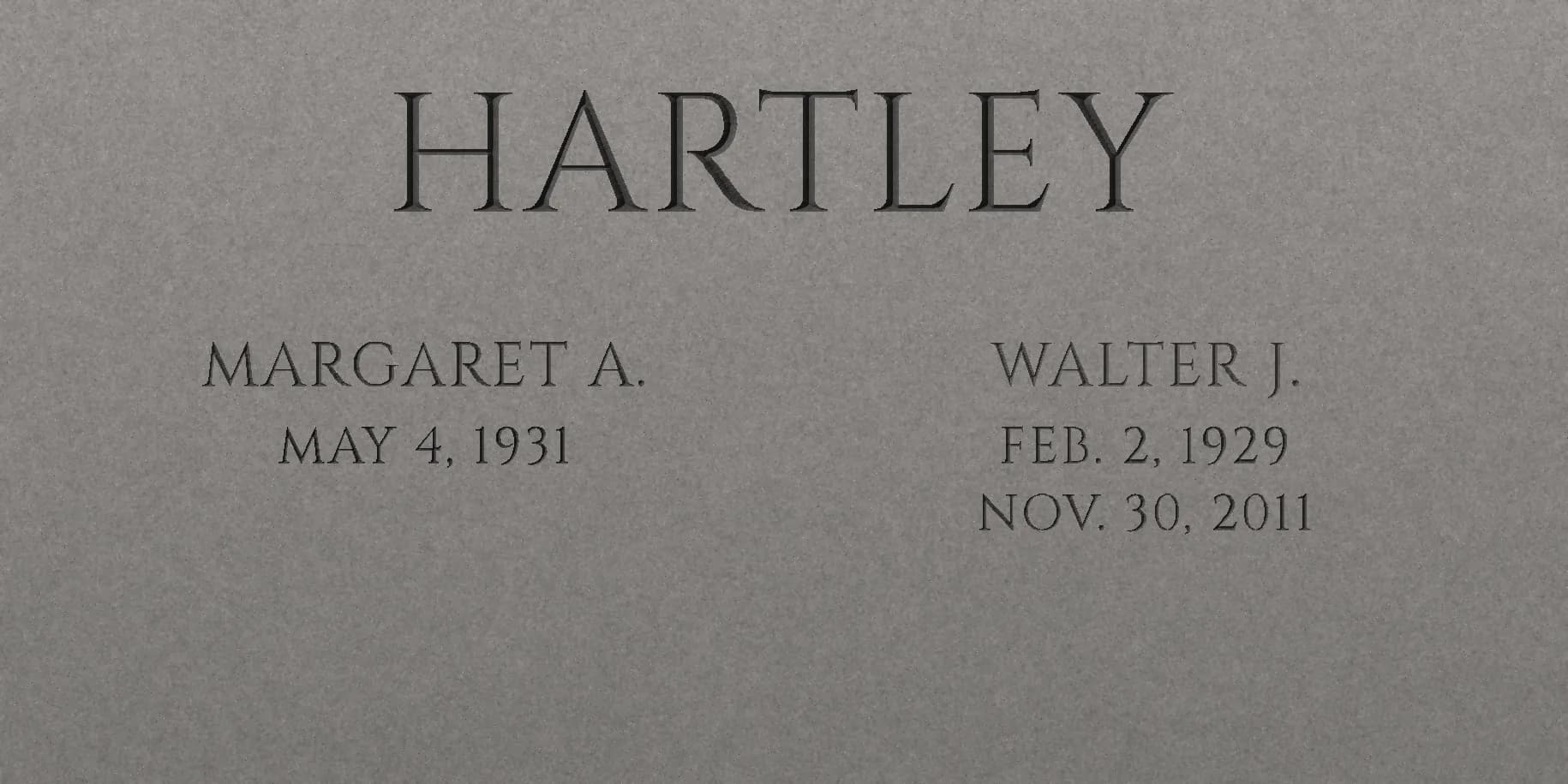
Demo stone; names and dates are fictional. Subtitles are built into the video. Read the transcript.
Your jobs, isolated
Private storage, short-lived download links
See it before you cut
The outline laid on your own photo
Every change logged
Analysis, edits and exports per job
Minutes from photo to file
Re-generating the same job is free
The seven steps
- 01 Photograph
Photograph the stone
A phone camera is enough. Stand square to the face of the stone and fill the frame with the polished area. Soft, even light shows the cut lettering best; harsh sun across half the stone makes shadows that hide edges.
- Takes less than a minute at the cemetery
- No special lighting or equipment
- We check the photo is sharp and large enough before upload
- 02 Size
Enter the size
Type the width and height of the polished face in inches. These two numbers are what turn a photo into a to-scale drawing, so measure them rather than guessing. No tape with you? A coin or a card in the frame works as a reference.
- Width and height of the face, in inches
- Stone presets for common shapes
- The measurements carry through to every file
- 03 Straighten
Straighten it to scale
We suggest the four corners of the polished face; drag any that are off. The photo is then squared up to the stone’s true proportions, so a phone shot taken slightly off-angle still measures correctly.
- Corner suggestions you can drag to fix
- Removes the perspective of an angled photo
- Letter heights are measured on the straightened image
- 04 Match
Read the dates and match the lettering
Monumize reads the dates already cut on the stone and gives each a confidence score. Pick the one to match: we measure its letter height, spacing and baseline, then rank the closest of 22 open-licensed monument lettering styles. It is a suggestion, so you can compare any style on your own stone and switch with one click.
- A confidence score on every date it finds
- Draw a box yourself if it misses one
- Says plainly when the match is only the closest style
- 05 Type
Type the new date
Type the final date the way the stone already reads: “MAR. 3, 2026”, “March 3, 2026” or just “2026”. It is set in the matched style, at the measured height, and outlined on your photo exactly where it will be cut.
- Follows the format of the existing date
- The outline sits on your own photo, not a mock-up
- Fix a typo any time before you download
- 06 Place
Place it and fine-tune
Drag the date into position, usually under or beside the existing one. Nudge it, change the height, or open up the spacing until it lines up with the lettering already on the stone. What you see on the photo is what the files will contain.
- Drag, nudge, resize and respace
- Line it up against the existing date and baseline
- Compare against the original before you commit
- 07 Download
Download to-scale cut files
Every job includes an R12 DXF made for Gerber OMEGA and sign software, plus EPS, PLT, a 1:1 PDF, SVG, a CAD DXF and a placement sheet. Curves are written as true arcs, so letters cut smooth. Your first job is free; after that it is $49 a job.
- Every format in one download
- To scale, cropped to the date, in inches
- Re-download from your dashboard any time
Check it on the stone before you cut
The match is a ranked suggestion, not a promise. Before anything is cut, the new date is outlined on your own photo, and the 1:1 PDF can be printed and held against the stone. Drag across the demo beside this to see what the proof looks like. Not sure which style your stone uses? Start with the lettering style guides or the headstone font identifier.

Video transcript
Monumize walkthrough: a final date from one photo (1:18).
Every final date goes onto a stone that was cut years ago. And the family will notice if the new numbers don’t match.
Matching that lettering usually means rubbings, tracing and redrawing, or waiting days for someone else to do it.
With Monumize, it starts with one photo. Snap the stone with your phone, enter its size, and Monumize straightens the picture to scale.
It reads the dates already on the stone and suggests the closest matching lettering style.
Pick the date to match, type the new one, and see it outlined right on the photo, exactly as it will be cut. Drag it into place, and fine-tune the size and spacing if you need to.
Then generate your files: a to-scale DXF ready for Gerber OMEGA, plus EPS, PLT, PDF and SVG for your plotter or stencil cutter.
No subscription. Forty-nine dollars a job, and your first job is free.
Monumize. Cut files for the final date, in the stone’s own lettering. Start today at monumize.com.
Ready to try it on a real stone?
Your first job is free, with no card needed. Photograph a stone and see the new date on it in minutes; after that it is $49 a job.